

Overview
Talkroute customers can configure call forwarding to enable your Recepta.ai voice agent to answer incoming calls. This guide covers everything from basic forwarding setup to advanced configurations like overflow answering and scheduled routing.Getting Your Recepta.ai Phone Number
Before configuring Talkroute, you’ll need to obtain your dedicated Recepta.ai phone number.Access Your Dashboard
Navigate to your Recepta.ai dashboard at https://recepta.ai/dashboard
Locate Your Phone Number
Your Recepta.ai phone number will be displayed prominently in the dashboard. Copy this number as you’ll need it for the Talkroute configuration.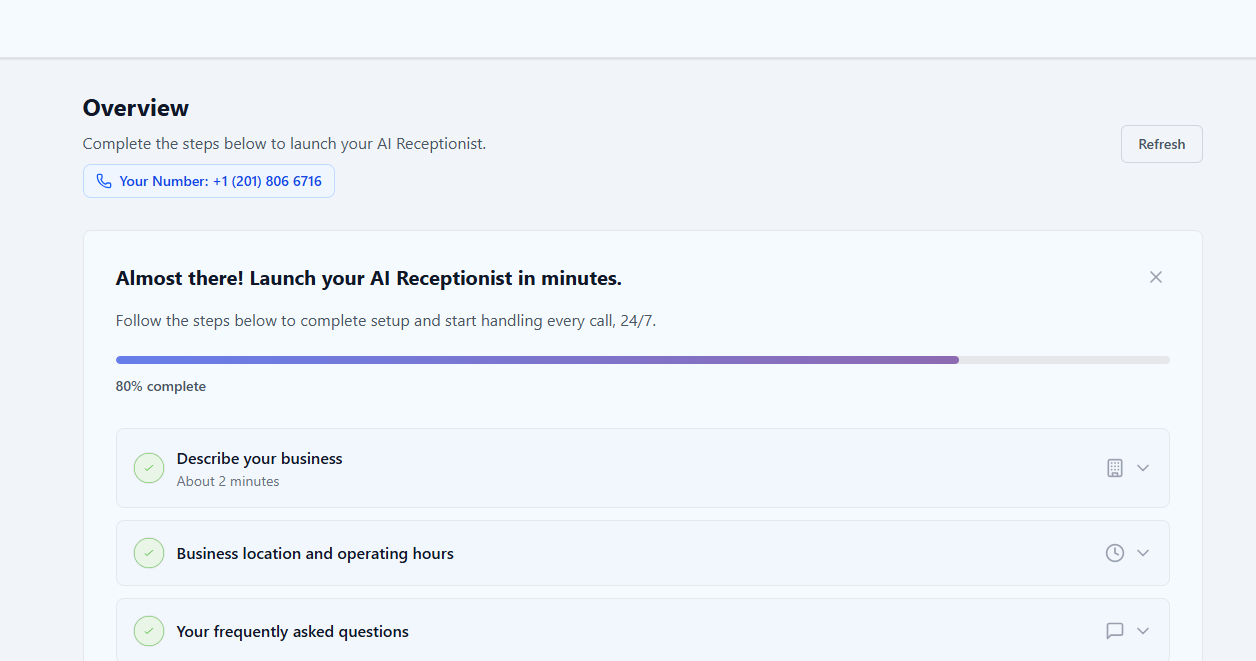
Keep your Recepta.ai phone number handy - you’ll need to enter it into Talkroute’s forwarding settings.
Basic Call Forwarding Setup
Configure Talkroute to forward calls to your Recepta.ai voice agent.Configuration Steps
Add Forwarding Number
Add your Recepta.ai phone number as a forwarding destination. Follow Talkroute’s guidance on adding a forwarding phone number to your:
- Virtual phone number
- Menu option
- Extension
Disable Call Announcement & Voicemail
Critical Requirement: You must uncheck the “Enable Call Announcement & Talkroute Voicemail” option.
Configure Caller ID Forwarding
Set up incoming caller ID settings to forward the caller’s identification to Recepta.ai. This allows your AI agent to see who’s calling.Follow Talkroute’s instructions on changing the incoming caller ID settings.
Advanced Configuration Options
Overflow Answering (Sequential Routing)
Set up sequential ringing so your team has the option to answer first, with calls automatically routing to Recepta.ai if unanswered.
Use Cases for Overflow Routing:
- Peak call volume periods
- When team is busy with other calls
- Backup coverage during breaks
- Ensuring no calls go unanswered
Scheduled Call Forwarding
Configure custom weekly schedules for when Recepta.ai handles calls (available on select Talkroute plans).Business Hours
During Business Hours: Route to your team with AI overflowYour staff handles calls during peak hours, with Recepta.ai catching overflow
After Hours
Outside Business Hours: Route directly to Recepta.aiEnsure 24/7 coverage when your team is unavailable
Weekends
Weekend Coverage: Full AI handlingLet Recepta.ai manage all weekend calls automatically
Holidays
Holiday Routing: Special schedulesConfigure unique routing for holidays and special occasions
Setup Business Hours Routing
Configure During-Hours Routing
Set up routing for business hours:
- Option 1: Team first, then Recepta.ai overflow
- Option 2: Direct to Recepta.ai for consistent service
Scheduled forwarding availability depends on your Talkroute plan. Check with Talkroute support if you’re unsure whether this feature is available.
Call Routing Strategies
Choose the strategy that best fits your business needs:Direct Forwarding (24/7 AI Coverage)
Direct Forwarding (24/7 AI Coverage)
Best for: Businesses wanting complete AI automationSetup: Forward all calls directly to Recepta.ai phone numberBenefits:
- No missed calls
- Consistent service 24/7
- Reduced operational costs
- Instant call pickup
- Predictable customer experience
Overflow Answering (Team First, AI Backup)
Overflow Answering (Team First, AI Backup)
Best for: Businesses preferring human touch with AI backupSetup: Ring team for 5-10 seconds, then forward to Recepta.aiBenefits:
- Prioritize human interaction
- AI handles overflow and missed calls
- No calls go to voicemail
- Flexible coverage
- Best of both worlds
Scheduled Routing (Time-Based)
Scheduled Routing (Time-Based)
Best for: Businesses with defined operating hoursSetup: Different routing for business hours vs after-hoursBenefits:
- Optimize for different times
- Cost-effective coverage
- Team handles calls when available
- AI ensures 24/7 availability
- Custom holiday routing
Important Configuration Tips
Critical Settings Checklist
Disable Voicemail
Must Do: Uncheck “Enable Call Announcement & Talkroute Voicemail”Otherwise calls will go to voicemail instead of Recepta.ai
Caller ID Forwarding
Enable: Configure incoming caller ID forwardingAllows your AI agent to see and announce who’s calling
Ring Time Limits
Maximum 10 seconds: Ring time before forwardingLonger wait times increase caller abandonment rates
Test Thoroughly
Make test calls: After configurationVerify calls route correctly in all scenarios
Preventing Infinite Call Loops
Safe Configuration Example:- Main Talkroute Number: Forwards to Recepta.ai → ✅ Correct
- AI Agent Transfer Destination: Your direct cell phone → ✅ Correct
- ❌ WRONG: AI transfers back to main Talkroute number (creates loop)
Testing Your Configuration
Thorough testing ensures your setup works correctly in all scenarios:Troubleshooting
Calls Going to Voicemail Instead of AI
Calls Going to Voicemail Instead of AI
Solution:
- Ensure “Enable Call Announcement & Talkroute Voicemail” is unchecked
- Verify voicemail is disabled for your forwarding destination
- Check that Recepta.ai is set as the primary forwarding number
- Reduce ring time before forwarding
Calls Not Reaching Recepta.ai
Calls Not Reaching Recepta.ai
Diagnostic Steps:
- Verify correct Recepta.ai phone number is entered in Talkroute
- Check that call forwarding is enabled and active
- Ensure your Recepta.ai agent is configured and active
- Review Talkroute’s call routing settings
- Make test call and review logs in both systems
- Typo in Recepta.ai phone number
- Forwarding not properly saved
- Conflicting routing rules
- AI agent not active
Caller ID Not Showing
Caller ID Not Showing
Solutions:
- Verify incoming caller ID forwarding is enabled in Talkroute
- Check Talkroute’s caller ID settings
- Ensure caller ID forwarding is configured per Talkroute’s instructions
- Contact Talkroute support if issue persists
Infinite Call Loops
Infinite Call Loops
Solutions:
- Use different phone numbers for transfers
- Never forward Talkroute number to itself
- Configure AI transfers to direct lines (cell/desk phones)
- Review complete call flow logic
- Document your routing to avoid loops
Scheduled Routing Not Working
Scheduled Routing Not Working
Solutions:
- Verify your Talkroute plan supports scheduled forwarding
- Check business hours schedule is set correctly
- Ensure timezone settings are correct
- Test during transition times (opening/closing)
- Contact Talkroute support for plan-specific features
Monitoring and Analytics
Tracking Performance
Talkroute Analytics
Monitor call volume, routing patterns, and forwarding statistics
Recepta.ai Dashboard
Track AI performance, conversation quality, and outcomes
Call Logs
Review detailed logs from both systems to identify issues
Quality Metrics
Measure customer satisfaction and agent performance
Key Metrics to Monitor
- Call Answer Rate: Percentage of calls successfully handled
- Voicemail Rate: Ensure calls aren’t going to voicemail
- Transfer Rate: How often AI transfers to humans
- Call Duration: Length of AI conversations
- Customer Satisfaction: Ratings and feedback
- Overflow Performance: How well overflow routing works
Best Practices
Disable Voicemail
Always disable voicemail for numbers forwarding to Recepta.ai
Enable Caller ID
Configure caller ID forwarding for better service
Minimize Wait Time
Keep ring times under 10 seconds to reduce drop-off
Test Regularly
Test your setup monthly to catch configuration changes
Monitor Analytics
Review performance weekly to identify issues early
Update AI Knowledge
Keep your AI agent’s knowledge base current
Next Steps
After configuring call forwarding:Configure Your Agent
Customize your AI agent’s responses and behavior
Set Up Transfers
Configure call transfer destinations and rules
Add Knowledge Base
Train your AI agent with company-specific information
View Analytics
Monitor performance and optimize call handling
Need Help?
Email Support
Contact our support team at support@recepta.ai
Talkroute Support
Visit Talkroute’s support for platform-specific questions
Schedule Demo
Book a personalized walkthrough with our team
Documentation
Browse our comprehensive documentation