

Overview
This guide will help you configure call forwarding from your CallRail tracking numbers to Recepta.ai, enabling your AI voice agent to answer incoming calls. CallRail customers can forward individual tracking numbers or set up call flows to route calls to Recepta.ai.Getting Your Recepta.ai Phone Number
Before configuring CallRail, you’ll need to obtain your dedicated Recepta.ai phone number.Access Your Dashboard
Navigate to your Recepta.ai dashboard at https://recepta.ai/dashboard
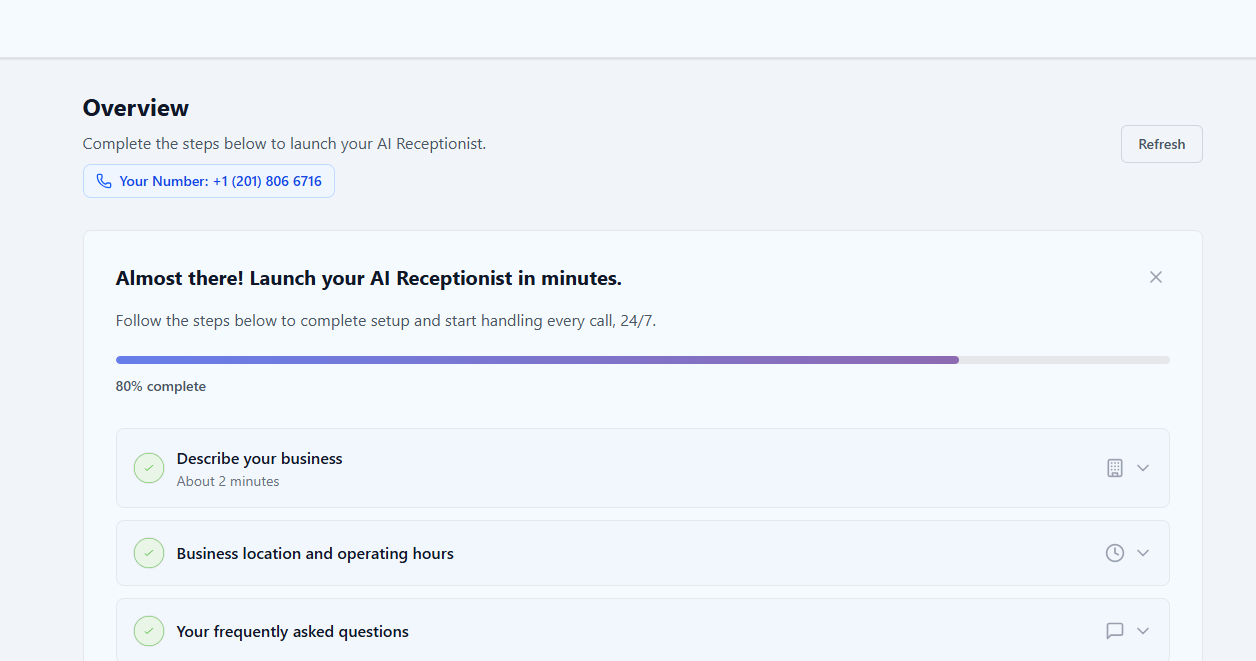
Make sure you have completed setting up your AI voice agent configuration in Recepta.ai before forwarding calls.
Method 1: Forward CallRail Tracking Number (Not Assigned to Call Flow)
Use these instructions to forward a tracking number that’s not assigned to a call flow directly to Recepta.ai.Edit Tracking Number
Click the pencil icon for the tracking number you’d like to update to go to its main configuration page.
Open Number Options
On the configuration screen, click the pencil icon in the upper-right of the Number Options menu.
Set Forward Destination
Under Forward Calls To, select Number and enter your Recepta.ai phone number (obtained from your dashboard).
Method 2: Forward Using CallRail Call Flows
If you’re using CallRail’s Call Flow feature, follow these instructions to route calls through your call flow to Recepta.ai.Setup Instructions
Assign Call Flow
In the “Forward Calls To” column, choose the call flow you’d like to assign to a tracking number.
Configure Call Flow Builder
In your Call Flow Builder, at the point when you want calls forwarded to Recepta.ai, use the Dial step.
Best Practices for Call Flows
Use Dial Step
Always use the Dial step (not Round Robin) to ensure calls consistently reach Recepta.ai.
Time-Based Routing
Configure different call flows for business hours vs. after-hours to optimize call handling.
Test Your Setup
Make test calls after configuration to verify calls are routing correctly to your AI agent.
Monitor Performance
Use both CallRail and Recepta.ai analytics to track call performance and quality.
Advanced Configuration Options
Business Hours Routing
You can configure different routing rules based on your business hours:- During Business Hours: Route to your team first, then overflow to Recepta.ai
- After Hours: Route all calls directly to Recepta.ai
- Holidays: Set special routing rules for holidays and special occasions
Call Flow Strategies
Direct Forwarding
Direct Forwarding
All calls immediately forward to Recepta.ai. Best for businesses that want 24/7 AI coverage.
Sequential Routing
Sequential Routing
Calls ring your team first (5-10 seconds), then forward to Recepta.ai if unanswered. Minimizes wait time while ensuring no calls are missed.
Time-Based Routing
Time-Based Routing
Different routing rules for different times of day. Combine human and AI coverage based on your schedule.
Troubleshooting
Calls Not Reaching Recepta.ai
Calls Not Reaching Recepta.ai
- Verify you entered the correct Recepta.ai phone number
- Check that your CallRail number is active and properly configured
- Ensure your Recepta.ai agent is set up and active
- Test by calling your CallRail number directly
Call Quality Issues
Call Quality Issues
- Verify your internet connection is stable
- Check CallRail’s system status page
- Review call logs in both CallRail and Recepta.ai dashboards
- Contact Recepta.ai support if issues persist
Call Flow Not Working
Call Flow Not Working
- Verify the Dial step is configured (not Round Robin)
- Check that the call flow is properly assigned to your tracking number
- Review the call flow logic to ensure it reaches the Dial step
- Test the call flow with a live call
Next Steps
After configuring call forwarding:Test Your Setup
Make test calls to verify everything is working correctly
Configure Your Agent
Fine-tune your AI agent’s responses and behavior
View Call Logs
Monitor incoming calls and agent performance
Analytics Dashboard
Track metrics and optimize your call handling
Need Help?
Email Support
Contact our support team at support@recepta.ai
Documentation
Browse our comprehensive documentation
Community
Join our community forum for tips and best practices
Schedule Demo
Book a personalized walkthrough with our team