

Overview
Google Voice users can set up call forwarding to enable your Recepta.ai voice agent to answer incoming calls. This guide walks you through the complete setup process, from obtaining your Recepta.ai phone number to configuring Google Voice’s call routing, including important considerations unique to Google Voice.Getting Your Recepta.ai Phone Number
Before configuring Google Voice, you’ll need to obtain your dedicated Recepta.ai phone number.Access Your Dashboard
Navigate to your Recepta.ai dashboard at https://recepta.ai/dashboard
Locate Your Phone Number
Your Recepta.ai phone number will be displayed prominently in the dashboard. Copy this number as you’ll need it for the Google Voice configuration.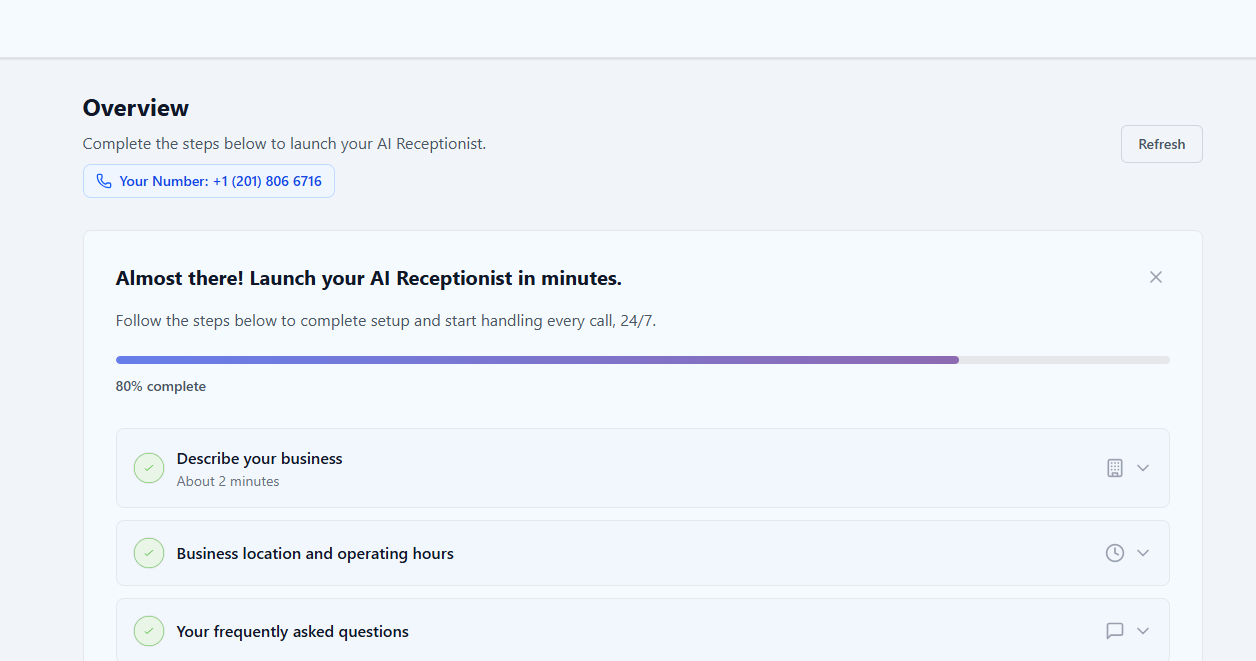
Keep your Recepta.ai phone number handy - you’ll need to enter it into Google Voice’s forwarding settings.
Configuring Call Forwarding in Google Voice
Google Voice’s interface may change over time. For the most current instructions, we recommend consulting Google Voice’s official documentation.Basic Setup Steps
Navigate to Call Forwarding
Find the call forwarding or linked numbers section (typically under “Calls” menu)
Add Recepta.ai Number
Add your Recepta.ai phone number as a forwarding destinationFollow Google’s verification process to confirm the number
Disable Other Devices
Critical: Ensure that all other devices are switched off in your Google Voice Settings
Important Google Voice Limitations
Sequential Ringing Not Natively Supported
If you want this functionality, you have two options:Option 1: Direct Forwarding (Recommended)
Simply forward all Google Voice calls directly to Recepta.ai. This ensures:- Instant call pickup
- No caller waiting time
- Most reliable configuration
- No missed calls
Option 2: Carrier Conditional Forwarding (Advanced)
Use a workaround with your cell phone carrier’s conditional call forwarding:Set Up Carrier Forwarding
Configure conditional call forwarding with your cell carrier:
- Forward on busy: To Recepta.ai
- Forward on no answer: To Recepta.ai (after 5-8 seconds)
Conditional call forwarding availability varies by carrier. Not all carriers support this feature.
Call Forwarding Strategies
Direct Forwarding (Recommended for Google Voice)
Direct Forwarding (Recommended for Google Voice)
Best for: Most Google Voice usersSetup: Forward all calls directly to Recepta.ai phone numberBenefits:
- No missed calls
- Instant pickup (no wait time)
- Simplest configuration
- Most reliable
- Works with all carriers
- No complex workarounds needed
- No personal screening option
- All calls go to AI first
Carrier Conditional Forwarding (Advanced)
Carrier Conditional Forwarding (Advanced)
Best for: Users who want personal screening and have compatible carriersSetup: Google Voice → Cell Phone → (Conditional) → Recepta.aiBenefits:
- Option for personal pickup
- AI handles missed calls
- Flexible coverage
- Requires carrier support
- More complex setup
- Additional points of failure
- Carrier-dependent reliability
Device Management in Google Voice
Disabling Other Devices
For Recepta.ai to reliably receive calls, you must disable other forwarding destinations:Important Configuration Tips
Preventing Infinite Call Loops
Safe Configuration Example:- Google Voice Number: Forwards to Recepta.ai → ✅ Correct
- AI Agent Transfer Destination: Your direct cell phone → ✅ Correct
- ❌ WRONG: AI transfers back to Google Voice number (creates loop)
Google Voice Voicemail Settings
Advanced Configuration
Business Use Cases
Solo Professional
Setup: Direct forwarding to AIUse Case: Screen calls, schedule appointments, answer FAQs while you focus on work
Side Business
Setup: Separate Google Voice number → AIUse Case: Keep business calls separate, AI handles business inquiries 24/7
Customer Service
Setup: Direct forwarding to AIUse Case: AI handles support calls, schedules callbacks, answers common questions
Appointment Scheduling
Setup: Direct forwarding to AIUse Case: AI books appointments automatically, sends confirmations
Integration Tips
Benefits of This Approach:- Maintain privacy of personal number
- Professional business presence
- AI handles all business calls
- Easy to track business call metrics
- Can disable business calls during vacation
Testing Your Configuration
Thorough testing ensures your setup works correctly:Troubleshooting
Calls Not Reaching Recepta.ai
Calls Not Reaching Recepta.ai
Diagnostic Steps:
- Verify correct Recepta.ai phone number is entered in Google Voice
- Check that Recepta.ai is the ONLY enabled forwarding destination
- Ensure other devices/numbers are disabled in Google Voice
- Verify your Recepta.ai agent is configured and active
- Make test call and review logs in both systems
- Other devices still enabled in Google Voice
- Typo in Recepta.ai phone number
- Number not verified in Google Voice
- AI agent not active or misconfigured
Calls Going to Google Voice Voicemail
Calls Going to Google Voice Voicemail
Solutions:
- Extend ring time before voicemail triggers
- Ensure Recepta.ai number is enabled in Google Voice
- Check that forwarding is active
- Verify Recepta.ai agent is answering calls promptly
- Consider disabling Google Voice voicemail
Multiple Devices Ringing
Multiple Devices Ringing
Solution:
- Go to Google Voice Settings → Calls
- Disable ALL devices except Recepta.ai number
- Save settings and test again
Infinite Call Loops
Infinite Call Loops
Solutions:
- Use different phone numbers for transfers
- Never forward Google Voice number to itself
- Configure AI transfers to direct lines (cell/desk phones)
- Review complete call flow logic
Conditional Forwarding Not Working
Conditional Forwarding Not Working
Solutions:
- Contact your cell phone carrier to verify support
- Check forwarding codes are entered correctly
- Test both “busy” and “no answer” scenarios
- Consider using direct Google Voice forwarding instead
- Some carriers don’t support this feature reliably
Call Quality Issues
Call Quality Issues
Solutions:
- Verify stable internet connection
- Check Google Voice service status
- Review call logs for error patterns
- Test from different locations/networks
- Contact Recepta.ai support if issues persist
Monitoring and Analytics
Tracking Performance
Google Voice History
View call history and patterns in Google Voice dashboard
Recepta.ai Dashboard
Track AI performance, conversation quality, and outcomes
Call Logs
Review detailed logs from both systems to identify issues
Quality Metrics
Measure customer satisfaction and agent performance
Key Metrics to Monitor
- Call Answer Rate: Percentage of calls successfully handled
- Voicemail Rate: Ensure calls aren’t going to Google Voice voicemail
- Transfer Rate: How often AI transfers to humans
- Call Duration: Length of AI conversations
- Customer Satisfaction: Ratings and feedback
- Call Completion: Successful end-to-end call handling
Best Practices for Google Voice + Recepta.ai
Single Device Only
Only enable Recepta.ai number in Google Voice - disable all others
Verify Number
Complete Google Voice verification for Recepta.ai number
Disable Voicemail
Consider disabling or extending voicemail timer
Use Different Numbers
Ensure transfer destinations use different numbers than Google Voice
Test Regularly
Test monthly to catch Google Voice interface changes
Monitor Analytics
Review performance weekly to identify issues early
Keep AI Updated
Keep your AI agent’s knowledge base current
Document Setup
Keep records of your configuration
Use Cases and Examples
Example 1: Freelance Consultant
Scenario: Consultant wants separate business line Configuration:- Google Voice business number
- Forward all calls to Recepta.ai
- AI qualifies leads, schedules consultations
- Personal cell remains private
Example 2: Small E-commerce Business
Scenario: Online store with customer inquiries Configuration:- Google Voice customer service line
- Direct to Recepta.ai
- AI handles order status, returns, FAQs
- Complex issues transferred to support team
Example 3: Side Business
Scenario: Part-time business alongside full-time job Configuration:- Google Voice for business
- All calls to AI
- AI books appointments outside work hours
- Transfers urgent calls to cell (different number)
Example 4: Professional Services
Scenario: Attorney, accountant, or similar professional Configuration:- Google Voice office line
- Forward to Recepta.ai
- AI screens calls, collects information
- Transfers to cell for current clients
Next Steps
After configuring call forwarding:Configure Your Agent
Customize your AI agent’s responses and behavior
Set Up Transfers
Configure call transfer destinations (use different number than Google Voice!)
Add Knowledge Base
Train your AI agent with company-specific information
View Analytics
Monitor performance and optimize call handling
Need Help?
Email Support
Contact our support team at support@recepta.ai
Google Voice Help
Visit Google Voice Help Center for platform-specific questions
Schedule Demo
Book a personalized walkthrough with our team
Documentation
Browse our comprehensive documentation