

Overview
RingCentral allows users to forward all company calls, individual extension calls, or calls on a specific schedule. This comprehensive guide covers all different forwarding options based on your business needs. Configure your RingCentral account to seamlessly route calls to your Recepta.ai voice agent.Getting Your Recepta.ai Phone Number
First, you’ll need to obtain your dedicated Recepta.ai phone number to use as your forwarding destination.Access Your Dashboard
Navigate to your Recepta.ai dashboard at https://recepta.ai/dashboard
Locate Your Phone Number
Your Recepta.ai phone number will be displayed in the dashboard. Copy this number as you’ll need it for RingCentral configuration.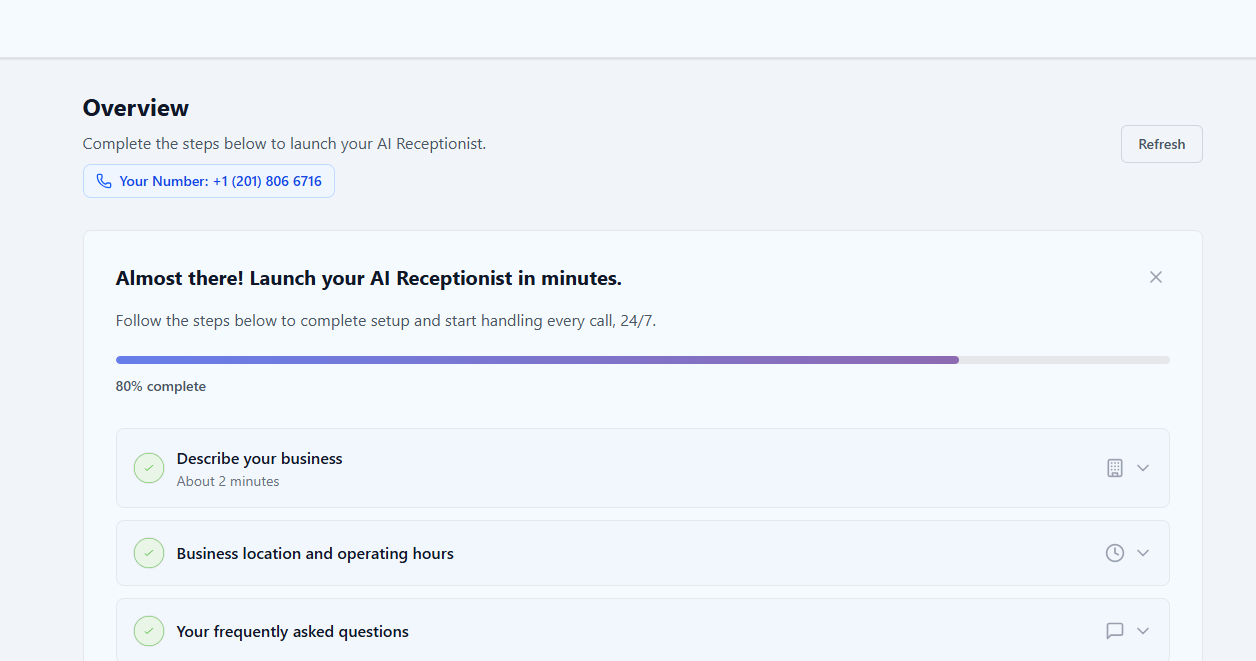
Keep this number handy - you’ll be entering it into RingCentral’s forwarding settings in the next steps.
Forwarding Options
RingCentral offers three main forwarding scenarios. Choose the one that best fits your business needs:Individual Extension
Forward calls from a specific extension to Recepta.ai
All Company Calls
Forward all incoming company calls to Recepta.ai
After-Hours Only
Forward calls outside business hours to Recepta.ai
Method 1: Forwarding Individual Extension Calls
Forward calls from a specific extension to your Recepta.ai voice agent.Access RingCentral Instructions
RingCentral’s interface has evolved over time. For the most up-to-date instructions, visit:RingCentral: Forward All Calls Feature
Enable Call Forwarding
Follow RingCentral’s instructions to enable the “Forward all calls” feature for your extension.
Enter Recepta.ai Number
When prompted for the forwarding destination, enter your Recepta.ai phone number (from your dashboard).
Use Cases for Extension Forwarding
Sales Team Extension
Sales Team Extension
Forward your sales line to Recepta.ai to:
- Qualify leads 24/7
- Schedule appointments automatically
- Collect contact information
- Answer common questions
Support Extension
Support Extension
Route support calls through Recepta.ai to:
- Provide instant responses to FAQs
- Escalate urgent issues appropriately
- Collect issue details before human handoff
- Offer 24/7 basic support
Main Reception
Main Reception
Use Recepta.ai as your main receptionist to:
- Answer and route all incoming calls
- Provide company information
- Transfer calls to appropriate departments
- Handle calls during peak times
Method 2: Forwarding All Company Calls
Forward all incoming calls across your entire company to Recepta.ai.Access Admin Portal
Visit RingCentral’s company-wide forwarding guide:RingCentral: Forward All Company Calls
Configure Company Forwarding
Follow RingCentral’s instructions to enable company-wide call forwarding.
Set Recepta.ai as Destination
Enter your Recepta.ai phone number as the forwarding destination for all company calls.
Method 3: Forwarding After-Hours Calls
Configure RingCentral to forward calls to Recepta.ai only outside your business hours.Access After-Hours Settings
Visit RingCentral’s after-hours rules guide:RingCentral: After-Hours Rules
After-Hours Routing Strategies
Full After-Hours Coverage
Route all after-hours calls to Recepta.ai for complete 24/7 coverage
Hybrid Approach
Ring your cell phone briefly (5-8 seconds), then forward to Recepta.ai as backup
Selective Routing
Route specific types of calls to Recepta.ai while handling others differently
Holiday Coverage
Configure special routing for holidays and special occasions
Important Setup Tips
Ring Time Configuration
If you choose to ring your personal cell phone before falling back to Recepta.ai:- Maximum Ring Time: 5-8 seconds (10 seconds absolute maximum)
- Ring Mode: Choose “Sequentially”, NOT “Simultaneously”
- Fallback: Ensure Recepta.ai is the fallback destination
Preventing Infinite Call Loops
Safe Configuration Example:- Main RingCentral Number: Forwards to Recepta.ai → ✅ Correct
- AI Agent Transfer Destination: Your direct cell phone → ✅ Correct
- ❌ WRONG: AI transfers back to main RingCentral number (creates loop)
Sequential vs. Simultaneous Ringing
Sequential (Recommended)
Use When: You want team → AI fallbackPhones ring one after another. AI picks up only if team doesn’t answer.
Simultaneous
Use When: You want instant pickupAll destinations ring at once. First to answer gets the call.
Advanced Configuration
Multi-Level Routing
Create sophisticated routing rules:Department-Specific Routing
Configure different AI agents for different departments:Sales Calls
Sales Calls
- Forward to sales-optimized AI agent
- Configure for lead qualification
- Automatic appointment scheduling
- CRM integration for lead capture
Support Calls
Support Calls
- Route to support-trained AI agent
- FAQ knowledge base integration
- Ticket creation for complex issues
- Escalation rules for urgent problems
General Inquiries
General Inquiries
- Forward to general-purpose AI agent
- Company information and directions
- Department routing
- Basic question answering
Testing Your Configuration
Thorough testing ensures your setup works correctly in all scenarios:Troubleshooting
Calls Not Reaching Recepta.ai
Calls Not Reaching Recepta.ai
Diagnostic Steps:
- Verify correct Recepta.ai phone number is entered in RingCentral
- Check that call forwarding is enabled and active
- Ensure your Recepta.ai agent is configured and active
- Review RingCentral’s call flow settings
- Check for any conflicting routing rules
- Make test call and review logs in both systems
- Typo in Recepta.ai phone number
- Forwarding disabled or expired
- Conflicting call handling rules
- AI agent not active
Calls Going to Voicemail Instead of AI
Calls Going to Voicemail Instead of AI
Solutions:
- Reduce ring time before forwarding (max 10 seconds)
- Ensure Recepta.ai is set as forwarding destination
- Disable or extend voicemail delay
- Check that forwarding is enabled
- Verify no conflicting rules override forwarding
Infinite Call Loops
Infinite Call Loops
Solutions:
- Use different phone numbers for transfers
- Never forward RingCentral number to itself
- Configure AI transfers to direct lines (cell/desk phones)
- Review complete call flow logic
- Document your routing to avoid loops
Business Hours Not Working Correctly
Business Hours Not Working Correctly
Solutions:
- Verify business hours schedule is correct
- Check timezone settings in RingCentral
- Ensure both business hours and after-hours rules exist
- Test during transition times (opening/closing)
- Review holiday calendar settings
Only Some Calls Forward to AI
Only Some Calls Forward to AI
Solutions:
- Check if using company-wide vs. extension-specific forwarding
- Verify all desired extensions have forwarding enabled
- Review call queue settings
- Check for department-specific rules
- Ensure no VIP caller rules override forwarding
Monitoring and Analytics
Tracking Performance
RingCentral Analytics
Monitor call volume, routing patterns, and forwarding statistics
Recepta.ai Dashboard
Track AI performance, conversation quality, and outcomes
Call Logs
Review detailed logs from both systems to identify issues
Quality Metrics
Measure customer satisfaction and agent performance
Key Metrics to Monitor
- Call Answer Rate: Percentage of calls successfully handled
- Average Wait Time: Time before AI picks up
- Transfer Rate: How often AI transfers to humans
- Call Duration: Length of AI conversations
- Customer Satisfaction: Ratings and feedback
- Cost Savings: Compare to previous solution
Optimization Tips
Minimize Wait Time
Keep ring times under 10 seconds to reduce caller drop-off
Use Sequential Routing
Prevent multiple systems from answering simultaneously
Configure Holidays
Set up special routing for holidays and special events
Regular Testing
Test your setup monthly to catch configuration drift
Update AI Knowledge
Keep your AI agent’s knowledge base current
Monitor Analytics
Review performance weekly to identify issues early
Next Steps
Configure Your Agent
Customize your AI agent’s responses and behavior
Set Up Transfers
Configure call transfer destinations and rules
Add Knowledge Base
Train your AI agent with company-specific information
View Analytics
Monitor performance and optimize call handling
Call Management
Learn advanced call management features
Integration Setup
Connect Recepta.ai with your other business tools
Need Help?
Email Support
Contact our support team at support@recepta.ai
RingCentral Support
Visit RingCentral’s support for platform-specific questions
Schedule Demo
Book a personalized walkthrough with our team
Documentation
Browse our comprehensive documentation
Community Forum
Join discussions and share best practices
Video Tutorials
Watch step-by-step setup videos