> ## Documentation Index
> Fetch the complete documentation index at: https://docs.recepta.ai/llms.txt
> Use this file to discover all available pages before exploring further.
# How to Forward Calls from RingCentral to Recepta.ai
> Complete guide to forwarding your RingCentral calls to Recepta.ai Voice Agent
## Overview
RingCentral allows users to forward all company calls, individual extension calls, or calls on a specific schedule. This comprehensive guide covers all different forwarding options based on your business needs. Configure your RingCentral account to seamlessly route calls to your Recepta.ai voice agent.
## Getting Your Recepta.ai Phone Number
First, you'll need to obtain your dedicated Recepta.ai phone number to use as your forwarding destination.
Navigate to your Recepta.ai dashboard at [https://recepta.ai/dashboard](https://recepta.ai/dashboard)
Your Recepta.ai phone number will be displayed in the dashboard. **Copy this number** as you'll need it for RingCentral configuration.
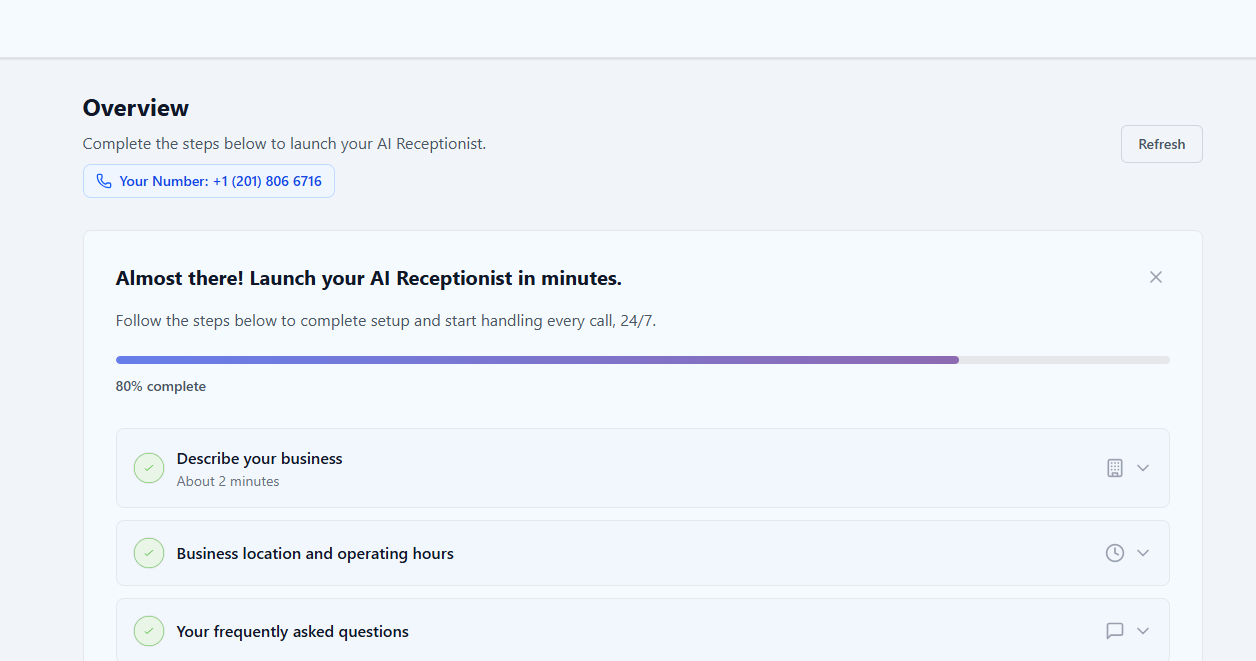 Ensure you have completed setting up your AI voice agent configuration before forwarding calls.
Keep this number handy - you'll be entering it into RingCentral's forwarding settings in the next steps.
***
## Forwarding Options
RingCentral offers three main forwarding scenarios. Choose the one that best fits your business needs:
Forward calls from a specific extension to Recepta.ai
Forward all incoming company calls to Recepta.ai
Forward calls outside business hours to Recepta.ai
***
## Method 1: Forwarding Individual Extension Calls
Forward calls from a specific extension to your Recepta.ai voice agent.
RingCentral's interface has evolved over time. For the most up-to-date instructions, visit:
[RingCentral: Forward All Calls Feature](https://support.ringcentral.com/article-v2/Turning-on-the-Forward-all-calls-feature.html?brand=RingCentral\&product=RingEX\&language=en_US\&pills-nav=desktop_%26_web)
Follow RingCentral's instructions to enable the "Forward all calls" feature for your extension.
When prompted for the forwarding destination, enter your Recepta.ai phone number (from your dashboard).
Save your configuration and make a test call to verify it's working correctly.
### Use Cases for Extension Forwarding
Forward your sales line to Recepta.ai to:
* Qualify leads 24/7
* Schedule appointments automatically
* Collect contact information
* Answer common questions
Route support calls through Recepta.ai to:
* Provide instant responses to FAQs
* Escalate urgent issues appropriately
* Collect issue details before human handoff
* Offer 24/7 basic support
Use Recepta.ai as your main receptionist to:
* Answer and route all incoming calls
* Provide company information
* Transfer calls to appropriate departments
* Handle calls during peak times
***
## Method 2: Forwarding All Company Calls
Forward all incoming calls across your entire company to Recepta.ai.
Visit RingCentral's company-wide forwarding guide:
[RingCentral: Forward All Company Calls](https://support.ringcentral.com/article-v2/Intro-to-the-Forward-all-company-calls-feature.html?brand=RingCentral\&product=RingEX\&language=en_US\&pills-nav=admin_portal)
Follow RingCentral's instructions to enable company-wide call forwarding.
This requires admin permissions in RingCentral.
Enter your Recepta.ai phone number as the forwarding destination for all company calls.
Review your settings carefully, then activate company-wide forwarding.
Company-wide forwarding affects all extensions. Ensure your team is aware of this change before implementation.
***
## Method 3: Forwarding After-Hours Calls
Configure RingCentral to forward calls to Recepta.ai only outside your business hours.
Visit RingCentral's after-hours rules guide:
[RingCentral: After-Hours Rules](https://support.ringcentral.com/article-v2/vf-5-10-Editing-your-Extension-s-After-Hours-Rules-via-Web.html?brand=Vodafone\&product=Office_Partner\&language=en_US)
Set your business hours schedule in RingCentral (e.g., Mon-Fri 9am-5pm)
Choose "**Forward to external number**" as the after-hours action
Input your Recepta.ai phone number as the forwarding destination
Save your after-hours rules and test by calling outside business hours
### After-Hours Routing Strategies
Route **all** after-hours calls to Recepta.ai for complete 24/7 coverage
Ring your cell phone briefly (5-8 seconds), then forward to Recepta.ai as backup
Route specific types of calls to Recepta.ai while handling others differently
Configure special routing for holidays and special occasions
***
## Important Setup Tips
### Ring Time Configuration
**Critical**: Do not allow more than 10 seconds ring time before forwarding to Recepta.ai.
Many callers will hang up if they wait too long, defeating the purpose of having AI coverage.
If you choose to ring your personal cell phone before falling back to Recepta.ai:
1. **Maximum Ring Time**: 5-8 seconds (10 seconds absolute maximum)
2. **Ring Mode**: Choose "**Sequentially**", NOT "Simultaneously"
3. **Fallback**: Ensure Recepta.ai is the fallback destination
### Preventing Infinite Call Loops
**Avoid Infinite Loops**: If your Recepta.ai agent has you as a transfer destination, the transfer number **must be different** from your main RingCentral number.
**Safe Configuration Example**:
* Main RingCentral Number: Forwards to Recepta.ai → ✅ Correct
* AI Agent Transfer Destination: Your direct cell phone → ✅ Correct
* ❌ **WRONG**: AI transfers back to main RingCentral number (creates loop)
### Sequential vs. Simultaneous Ringing
**Use When**: You want team → AI fallback
Phones ring one after another. AI picks up only if team doesn't answer.
**Use When**: You want instant pickup
All destinations ring at once. First to answer gets the call.
***
## Advanced Configuration
### Multi-Level Routing
Create sophisticated routing rules:
Ring main reception desk for 5 seconds
If unanswered, ring team queue for 5 seconds
Finally forward to Recepta.ai to ensure no calls are missed
### Department-Specific Routing
Configure different AI agents for different departments:
* Forward to sales-optimized AI agent
* Configure for lead qualification
* Automatic appointment scheduling
* CRM integration for lead capture
* Route to support-trained AI agent
* FAQ knowledge base integration
* Ticket creation for complex issues
* Escalation rules for urgent problems
* Forward to general-purpose AI agent
* Company information and directions
* Department routing
* Basic question answering
***
## Testing Your Configuration
Thorough testing ensures your setup works correctly in all scenarios:
Call during business hours to verify normal routing works
Call outside business hours to confirm after-hours routing
If using sequential routing, verify calls properly fall back to AI
Verify AI agent transfers work without creating loops
If forwarding multiple extensions, test each one individually
Check logs in both RingCentral and Recepta.ai dashboards
***
## Troubleshooting
**Diagnostic Steps**:
* Verify correct Recepta.ai phone number is entered in RingCentral
* Check that call forwarding is enabled and active
* Ensure your Recepta.ai agent is configured and active
* Review RingCentral's call flow settings
* Check for any conflicting routing rules
* Make test call and review logs in both systems
**Common Causes**:
* Typo in Recepta.ai phone number
* Forwarding disabled or expired
* Conflicting call handling rules
* AI agent not active
**Solutions**:
* Reduce ring time before forwarding (max 10 seconds)
* Ensure Recepta.ai is set as forwarding destination
* Disable or extend voicemail delay
* Check that forwarding is enabled
* Verify no conflicting rules override forwarding
**Best Practice**:
Set ring time to 5-8 seconds to ensure AI pickup before voicemail
**Solutions**:
* Use different phone numbers for transfers
* Never forward RingCentral number to itself
* Configure AI transfers to direct lines (cell/desk phones)
* Review complete call flow logic
* Document your routing to avoid loops
**Example Safe Setup**:
```
Caller → RingCentral Main → Recepta.ai → Transfer to Cell Phone
(Each step uses a different number)
```
**Solutions**:
* Verify business hours schedule is correct
* Check timezone settings in RingCentral
* Ensure both business hours and after-hours rules exist
* Test during transition times (opening/closing)
* Review holiday calendar settings
**Tip**:
Test immediately before/after your business hours transition to catch edge cases
**Solutions**:
* Check if using company-wide vs. extension-specific forwarding
* Verify all desired extensions have forwarding enabled
* Review call queue settings
* Check for department-specific rules
* Ensure no VIP caller rules override forwarding
**Note**:
RingCentral's rules are hierarchical - specific rules can override general ones
***
## Monitoring and Analytics
### Tracking Performance
Monitor call volume, routing patterns, and forwarding statistics
Track AI performance, conversation quality, and outcomes
Review detailed logs from both systems to identify issues
Measure customer satisfaction and agent performance
### Key Metrics to Monitor
* **Call Answer Rate**: Percentage of calls successfully handled
* **Average Wait Time**: Time before AI picks up
* **Transfer Rate**: How often AI transfers to humans
* **Call Duration**: Length of AI conversations
* **Customer Satisfaction**: Ratings and feedback
* **Cost Savings**: Compare to previous solution
***
## Optimization Tips
Keep ring times under 10 seconds to reduce caller drop-off
Prevent multiple systems from answering simultaneously
Set up special routing for holidays and special events
Test your setup monthly to catch configuration drift
Keep your AI agent's knowledge base current
Review performance weekly to identify issues early
***
## Next Steps
Customize your AI agent's responses and behavior
Configure call transfer destinations and rules
Train your AI agent with company-specific information
Monitor performance and optimize call handling
Learn advanced call management features
Connect Recepta.ai with your other business tools
***
## Need Help?
Contact our support team at [support@recepta.ai](mailto:support@recepta.ai)
Visit RingCentral's support for platform-specific questions
Book a personalized walkthrough with our team
Browse our comprehensive documentation
Join discussions and share best practices
Watch step-by-step setup videos
Ensure you have completed setting up your AI voice agent configuration before forwarding calls.
Keep this number handy - you'll be entering it into RingCentral's forwarding settings in the next steps.
***
## Forwarding Options
RingCentral offers three main forwarding scenarios. Choose the one that best fits your business needs:
Forward calls from a specific extension to Recepta.ai
Forward all incoming company calls to Recepta.ai
Forward calls outside business hours to Recepta.ai
***
## Method 1: Forwarding Individual Extension Calls
Forward calls from a specific extension to your Recepta.ai voice agent.
RingCentral's interface has evolved over time. For the most up-to-date instructions, visit:
[RingCentral: Forward All Calls Feature](https://support.ringcentral.com/article-v2/Turning-on-the-Forward-all-calls-feature.html?brand=RingCentral\&product=RingEX\&language=en_US\&pills-nav=desktop_%26_web)
Follow RingCentral's instructions to enable the "Forward all calls" feature for your extension.
When prompted for the forwarding destination, enter your Recepta.ai phone number (from your dashboard).
Save your configuration and make a test call to verify it's working correctly.
### Use Cases for Extension Forwarding
Forward your sales line to Recepta.ai to:
* Qualify leads 24/7
* Schedule appointments automatically
* Collect contact information
* Answer common questions
Route support calls through Recepta.ai to:
* Provide instant responses to FAQs
* Escalate urgent issues appropriately
* Collect issue details before human handoff
* Offer 24/7 basic support
Use Recepta.ai as your main receptionist to:
* Answer and route all incoming calls
* Provide company information
* Transfer calls to appropriate departments
* Handle calls during peak times
***
## Method 2: Forwarding All Company Calls
Forward all incoming calls across your entire company to Recepta.ai.
Visit RingCentral's company-wide forwarding guide:
[RingCentral: Forward All Company Calls](https://support.ringcentral.com/article-v2/Intro-to-the-Forward-all-company-calls-feature.html?brand=RingCentral\&product=RingEX\&language=en_US\&pills-nav=admin_portal)
Follow RingCentral's instructions to enable company-wide call forwarding.
This requires admin permissions in RingCentral.
Enter your Recepta.ai phone number as the forwarding destination for all company calls.
Review your settings carefully, then activate company-wide forwarding.
Company-wide forwarding affects all extensions. Ensure your team is aware of this change before implementation.
***
## Method 3: Forwarding After-Hours Calls
Configure RingCentral to forward calls to Recepta.ai only outside your business hours.
Visit RingCentral's after-hours rules guide:
[RingCentral: After-Hours Rules](https://support.ringcentral.com/article-v2/vf-5-10-Editing-your-Extension-s-After-Hours-Rules-via-Web.html?brand=Vodafone\&product=Office_Partner\&language=en_US)
Set your business hours schedule in RingCentral (e.g., Mon-Fri 9am-5pm)
Choose "**Forward to external number**" as the after-hours action
Input your Recepta.ai phone number as the forwarding destination
Save your after-hours rules and test by calling outside business hours
### After-Hours Routing Strategies
Route **all** after-hours calls to Recepta.ai for complete 24/7 coverage
Ring your cell phone briefly (5-8 seconds), then forward to Recepta.ai as backup
Route specific types of calls to Recepta.ai while handling others differently
Configure special routing for holidays and special occasions
***
## Important Setup Tips
### Ring Time Configuration
**Critical**: Do not allow more than 10 seconds ring time before forwarding to Recepta.ai.
Many callers will hang up if they wait too long, defeating the purpose of having AI coverage.
If you choose to ring your personal cell phone before falling back to Recepta.ai:
1. **Maximum Ring Time**: 5-8 seconds (10 seconds absolute maximum)
2. **Ring Mode**: Choose "**Sequentially**", NOT "Simultaneously"
3. **Fallback**: Ensure Recepta.ai is the fallback destination
### Preventing Infinite Call Loops
**Avoid Infinite Loops**: If your Recepta.ai agent has you as a transfer destination, the transfer number **must be different** from your main RingCentral number.
**Safe Configuration Example**:
* Main RingCentral Number: Forwards to Recepta.ai → ✅ Correct
* AI Agent Transfer Destination: Your direct cell phone → ✅ Correct
* ❌ **WRONG**: AI transfers back to main RingCentral number (creates loop)
### Sequential vs. Simultaneous Ringing
**Use When**: You want team → AI fallback
Phones ring one after another. AI picks up only if team doesn't answer.
**Use When**: You want instant pickup
All destinations ring at once. First to answer gets the call.
***
## Advanced Configuration
### Multi-Level Routing
Create sophisticated routing rules:
Ring main reception desk for 5 seconds
If unanswered, ring team queue for 5 seconds
Finally forward to Recepta.ai to ensure no calls are missed
### Department-Specific Routing
Configure different AI agents for different departments:
* Forward to sales-optimized AI agent
* Configure for lead qualification
* Automatic appointment scheduling
* CRM integration for lead capture
* Route to support-trained AI agent
* FAQ knowledge base integration
* Ticket creation for complex issues
* Escalation rules for urgent problems
* Forward to general-purpose AI agent
* Company information and directions
* Department routing
* Basic question answering
***
## Testing Your Configuration
Thorough testing ensures your setup works correctly in all scenarios:
Call during business hours to verify normal routing works
Call outside business hours to confirm after-hours routing
If using sequential routing, verify calls properly fall back to AI
Verify AI agent transfers work without creating loops
If forwarding multiple extensions, test each one individually
Check logs in both RingCentral and Recepta.ai dashboards
***
## Troubleshooting
**Diagnostic Steps**:
* Verify correct Recepta.ai phone number is entered in RingCentral
* Check that call forwarding is enabled and active
* Ensure your Recepta.ai agent is configured and active
* Review RingCentral's call flow settings
* Check for any conflicting routing rules
* Make test call and review logs in both systems
**Common Causes**:
* Typo in Recepta.ai phone number
* Forwarding disabled or expired
* Conflicting call handling rules
* AI agent not active
**Solutions**:
* Reduce ring time before forwarding (max 10 seconds)
* Ensure Recepta.ai is set as forwarding destination
* Disable or extend voicemail delay
* Check that forwarding is enabled
* Verify no conflicting rules override forwarding
**Best Practice**:
Set ring time to 5-8 seconds to ensure AI pickup before voicemail
**Solutions**:
* Use different phone numbers for transfers
* Never forward RingCentral number to itself
* Configure AI transfers to direct lines (cell/desk phones)
* Review complete call flow logic
* Document your routing to avoid loops
**Example Safe Setup**:
```
Caller → RingCentral Main → Recepta.ai → Transfer to Cell Phone
(Each step uses a different number)
```
**Solutions**:
* Verify business hours schedule is correct
* Check timezone settings in RingCentral
* Ensure both business hours and after-hours rules exist
* Test during transition times (opening/closing)
* Review holiday calendar settings
**Tip**:
Test immediately before/after your business hours transition to catch edge cases
**Solutions**:
* Check if using company-wide vs. extension-specific forwarding
* Verify all desired extensions have forwarding enabled
* Review call queue settings
* Check for department-specific rules
* Ensure no VIP caller rules override forwarding
**Note**:
RingCentral's rules are hierarchical - specific rules can override general ones
***
## Monitoring and Analytics
### Tracking Performance
Monitor call volume, routing patterns, and forwarding statistics
Track AI performance, conversation quality, and outcomes
Review detailed logs from both systems to identify issues
Measure customer satisfaction and agent performance
### Key Metrics to Monitor
* **Call Answer Rate**: Percentage of calls successfully handled
* **Average Wait Time**: Time before AI picks up
* **Transfer Rate**: How often AI transfers to humans
* **Call Duration**: Length of AI conversations
* **Customer Satisfaction**: Ratings and feedback
* **Cost Savings**: Compare to previous solution
***
## Optimization Tips
Keep ring times under 10 seconds to reduce caller drop-off
Prevent multiple systems from answering simultaneously
Set up special routing for holidays and special events
Test your setup monthly to catch configuration drift
Keep your AI agent's knowledge base current
Review performance weekly to identify issues early
***
## Next Steps
Customize your AI agent's responses and behavior
Configure call transfer destinations and rules
Train your AI agent with company-specific information
Monitor performance and optimize call handling
Learn advanced call management features
Connect Recepta.ai with your other business tools
***
## Need Help?
Contact our support team at [support@recepta.ai](mailto:support@recepta.ai)
Visit RingCentral's support for platform-specific questions
Book a personalized walkthrough with our team
Browse our comprehensive documentation
Join discussions and share best practices
Watch step-by-step setup videos