> ## Documentation Index
> Fetch the complete documentation index at: https://docs.recepta.ai/llms.txt
> Use this file to discover all available pages before exploring further.
# How to Forward Calls from Google Voice to Recepta.ai
> Complete guide to forwarding your Google Voice calls to Recepta.ai Voice Agent
## Overview
Google Voice users can set up call forwarding to enable your Recepta.ai voice agent to answer incoming calls. This guide walks you through the complete setup process, from obtaining your Recepta.ai phone number to configuring Google Voice's call routing, including important considerations unique to Google Voice.
## Getting Your Recepta.ai Phone Number
Before configuring Google Voice, you'll need to obtain your dedicated Recepta.ai phone number.
Navigate to your Recepta.ai dashboard at [https://recepta.ai/dashboard](https://recepta.ai/dashboard)
Your Recepta.ai phone number will be displayed prominently in the dashboard. Copy this number as you'll need it for the Google Voice configuration.
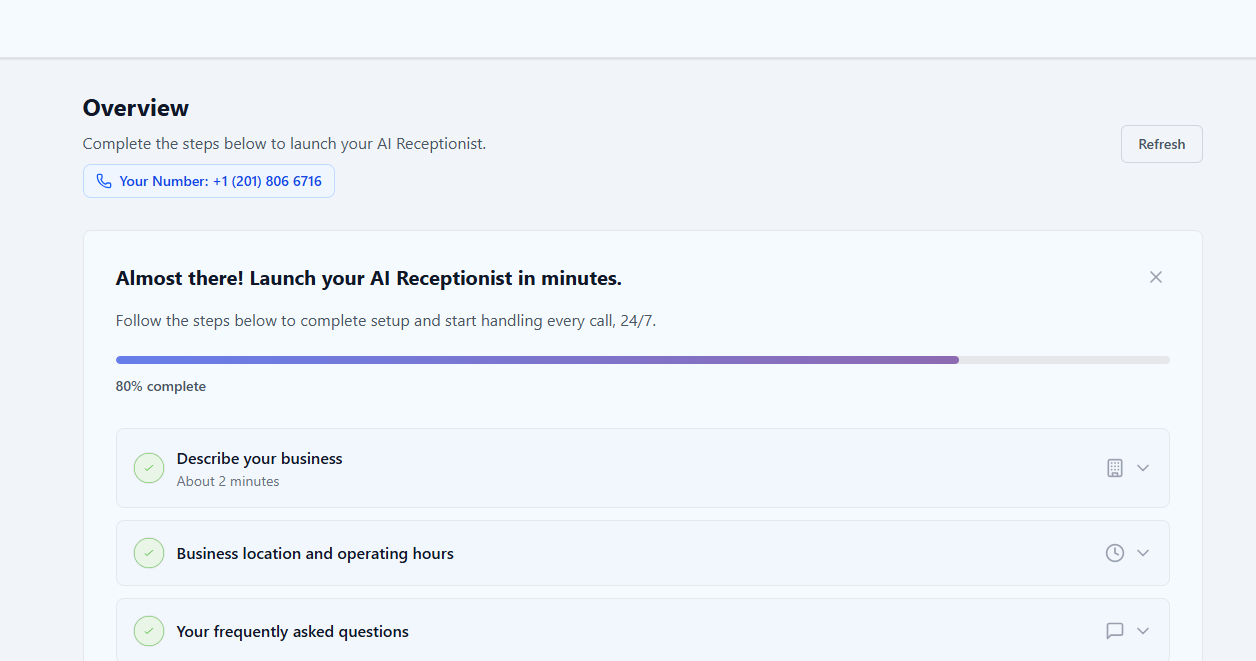 Ensure you have completed setting up your AI voice agent's call instructions and configuration before proceeding with call forwarding.
Keep your Recepta.ai phone number handy - you'll need to enter it into Google Voice's forwarding settings.
***
## Configuring Call Forwarding in Google Voice
Google Voice's interface may change over time. For the most current instructions, we recommend consulting Google Voice's official documentation.
### Basic Setup Steps
Log into your Google Voice account and access Settings
Find the call forwarding or linked numbers section (typically under "Calls" menu)
Add your Recepta.ai phone number as a forwarding destination
Follow Google's verification process to confirm the number
**Critical**: Ensure that all other devices are switched off in your Google Voice Settings
Your Recepta.ai number should be the ONLY enabled forwarding destination. Otherwise, calls may ring multiple devices.
Save your settings and verify the configuration
Make a test call to verify calls are routing correctly to your Recepta.ai voice agent
Google Voice allows you to link multiple phone numbers. For best results with Recepta.ai, disable all other linked devices and only enable forwarding to your Recepta.ai number.
***
## Important Google Voice Limitations
### Sequential Ringing Not Natively Supported
Google Voice does not natively support ringing your personal cell phone for 5-8 seconds before forwarding to Recepta.ai.
If you want this functionality, you have two options:
#### Option 1: Direct Forwarding (Recommended)
Simply forward all Google Voice calls directly to Recepta.ai. This ensures:
* Instant call pickup
* No caller waiting time
* Most reliable configuration
* No missed calls
#### Option 2: Carrier Conditional Forwarding (Advanced)
Use a workaround with your cell phone carrier's conditional call forwarding:
Configure Google Voice to forward all calls to your cell phone
Configure conditional call forwarding with your cell carrier:
* Forward on busy: To Recepta.ai
* Forward on no answer: To Recepta.ai (after 5-8 seconds)
Contact your carrier for specific dial codes and setup instructions
Test when you answer and when you don't to verify proper behavior
Conditional call forwarding availability varies by carrier. Not all carriers support this feature.
***
## Call Forwarding Strategies
**Best for**: Most Google Voice users
**Setup**: Forward all calls directly to Recepta.ai phone number
**Benefits**:
* No missed calls
* Instant pickup (no wait time)
* Simplest configuration
* Most reliable
* Works with all carriers
* No complex workarounds needed
**Considerations**:
* No personal screening option
* All calls go to AI first
**Best for**: Users who want personal screening and have compatible carriers
**Setup**: Google Voice → Cell Phone → (Conditional) → Recepta.ai
**Benefits**:
* Option for personal pickup
* AI handles missed calls
* Flexible coverage
**Considerations**:
* Requires carrier support
* More complex setup
* Additional points of failure
* Carrier-dependent reliability
Not all cell phone carriers support conditional call forwarding. Contact your carrier to verify before attempting this configuration.
***
## Device Management in Google Voice
### Disabling Other Devices
For Recepta.ai to reliably receive calls, you must disable other forwarding destinations:
In Google Voice, go to Settings → Calls
Find the section showing all linked phone numbers and devices
Turn off all devices/numbers except your Recepta.ai forwarding number
Confirm that only Recepta.ai number is enabled
If multiple devices are enabled, Google Voice may ring them all simultaneously or in sequence, potentially preventing Recepta.ai from answering calls reliably.
***
## Important Configuration Tips
### Preventing Infinite Call Loops
**Avoid Infinite Loops**: If your Recepta.ai agent has you as a transfer destination, the transfer number **must be different** from your main Google Voice number. Otherwise, calls will get stuck in an infinite loop.
**Safe Configuration Example**:
* Google Voice Number: Forwards to Recepta.ai → ✅ Correct
* AI Agent Transfer Destination: Your direct cell phone → ✅ Correct
* ❌ **WRONG**: AI transfers back to Google Voice number (creates loop)
**Why This Matters**:
If calls forward from Google Voice → Recepta.ai → back to Google Voice, they'll loop forever, creating a poor customer experience.
### Google Voice Voicemail Settings
In Google Voice Settings, find voicemail options
Consider disabling voicemail or extending the ring time before voicemail
This ensures Recepta.ai has time to answer before Google Voice voicemail triggers
***
## Advanced Configuration
### Business Use Cases
**Setup**: Direct forwarding to AI
**Use Case**: Screen calls, schedule appointments, answer FAQs while you focus on work
**Setup**: Separate Google Voice number → AI
**Use Case**: Keep business calls separate, AI handles business inquiries 24/7
**Setup**: Direct forwarding to AI
**Use Case**: AI handles support calls, schedules callbacks, answers common questions
**Setup**: Direct forwarding to AI
**Use Case**: AI books appointments automatically, sends confirmations
### Integration Tips
Google Voice is excellent for separating business and personal lines. Use a dedicated Google Voice number for business, forward it to Recepta.ai, and keep your personal cell number private.
**Benefits of This Approach**:
* Maintain privacy of personal number
* Professional business presence
* AI handles all business calls
* Easy to track business call metrics
* Can disable business calls during vacation
***
## Testing Your Configuration
Thorough testing ensures your setup works correctly:
Confirm only Recepta.ai number is enabled in Google Voice
Call your Google Voice number to verify it forwards to Recepta.ai
Call from different phone numbers to test various scenarios
If configured, verify AI agent transfers work without creating loops
Verify audio quality is clear and acceptable
Check logs in both Google Voice and Recepta.ai dashboards
Verify calls don't go to Google Voice voicemail unintentionally
***
## Troubleshooting
**Diagnostic Steps**:
* Verify correct Recepta.ai phone number is entered in Google Voice
* Check that Recepta.ai is the ONLY enabled forwarding destination
* Ensure other devices/numbers are disabled in Google Voice
* Verify your Recepta.ai agent is configured and active
* Make test call and review logs in both systems
**Common Causes**:
* Other devices still enabled in Google Voice
* Typo in Recepta.ai phone number
* Number not verified in Google Voice
* AI agent not active or misconfigured
**Solutions**:
* Extend ring time before voicemail triggers
* Ensure Recepta.ai number is enabled in Google Voice
* Check that forwarding is active
* Verify Recepta.ai agent is answering calls promptly
* Consider disabling Google Voice voicemail
**Why This Happens**:
Google Voice voicemail may trigger if the forwarding number doesn't answer quickly enough
**Solution**:
* Go to Google Voice Settings → Calls
* Disable ALL devices except Recepta.ai number
* Save settings and test again
**This is the most common Google Voice issue** with AI forwarding.
**Solutions**:
* Use different phone numbers for transfers
* Never forward Google Voice number to itself
* Configure AI transfers to direct lines (cell/desk phones)
* Review complete call flow logic
**Example Safe Setup**:
```
Caller → Google Voice → Recepta.ai → Transfer to Cell Phone
(Each step uses a different number)
```
**Solutions**:
* Contact your cell phone carrier to verify support
* Check forwarding codes are entered correctly
* Test both "busy" and "no answer" scenarios
* Consider using direct Google Voice forwarding instead
* Some carriers don't support this feature reliably
**Solutions**:
* Verify stable internet connection
* Check Google Voice service status
* Review call logs for error patterns
* Test from different locations/networks
* Contact Recepta.ai support if issues persist
***
## Monitoring and Analytics
### Tracking Performance
View call history and patterns in Google Voice dashboard
Track AI performance, conversation quality, and outcomes
Review detailed logs from both systems to identify issues
Measure customer satisfaction and agent performance
### Key Metrics to Monitor
* **Call Answer Rate**: Percentage of calls successfully handled
* **Voicemail Rate**: Ensure calls aren't going to Google Voice voicemail
* **Transfer Rate**: How often AI transfers to humans
* **Call Duration**: Length of AI conversations
* **Customer Satisfaction**: Ratings and feedback
* **Call Completion**: Successful end-to-end call handling
***
## Best Practices for Google Voice + Recepta.ai
Only enable Recepta.ai number in Google Voice - disable all others
Complete Google Voice verification for Recepta.ai number
Consider disabling or extending voicemail timer
Ensure transfer destinations use different numbers than Google Voice
Test monthly to catch Google Voice interface changes
Review performance weekly to identify issues early
Keep your AI agent's knowledge base current
Keep records of your configuration
***
## Use Cases and Examples
### Example 1: Freelance Consultant
**Scenario**: Consultant wants separate business line
**Configuration**:
* Google Voice business number
* Forward all calls to Recepta.ai
* AI qualifies leads, schedules consultations
* Personal cell remains private
**Benefit**: Professional presence, no missed opportunities
### Example 2: Small E-commerce Business
**Scenario**: Online store with customer inquiries
**Configuration**:
* Google Voice customer service line
* Direct to Recepta.ai
* AI handles order status, returns, FAQs
* Complex issues transferred to support team
**Benefit**: 24/7 customer service without additional staff
### Example 3: Side Business
**Scenario**: Part-time business alongside full-time job
**Configuration**:
* Google Voice for business
* All calls to AI
* AI books appointments outside work hours
* Transfers urgent calls to cell (different number)
**Benefit**: Never miss business opportunities, maintain day job
### Example 4: Professional Services
**Scenario**: Attorney, accountant, or similar professional
**Configuration**:
* Google Voice office line
* Forward to Recepta.ai
* AI screens calls, collects information
* Transfers to cell for current clients
**Benefit**: Screen calls professionally, collect leads 24/7
***
## Next Steps
After configuring call forwarding:
Customize your AI agent's responses and behavior
Configure call transfer destinations (use different number than Google Voice!)
Train your AI agent with company-specific information
Monitor performance and optimize call handling
***
## Need Help?
Contact our support team at [support@recepta.ai](mailto:support@recepta.ai)
Visit Google Voice Help Center for platform-specific questions
Book a personalized walkthrough with our team
Browse our comprehensive documentation
Ensure you have completed setting up your AI voice agent's call instructions and configuration before proceeding with call forwarding.
Keep your Recepta.ai phone number handy - you'll need to enter it into Google Voice's forwarding settings.
***
## Configuring Call Forwarding in Google Voice
Google Voice's interface may change over time. For the most current instructions, we recommend consulting Google Voice's official documentation.
### Basic Setup Steps
Log into your Google Voice account and access Settings
Find the call forwarding or linked numbers section (typically under "Calls" menu)
Add your Recepta.ai phone number as a forwarding destination
Follow Google's verification process to confirm the number
**Critical**: Ensure that all other devices are switched off in your Google Voice Settings
Your Recepta.ai number should be the ONLY enabled forwarding destination. Otherwise, calls may ring multiple devices.
Save your settings and verify the configuration
Make a test call to verify calls are routing correctly to your Recepta.ai voice agent
Google Voice allows you to link multiple phone numbers. For best results with Recepta.ai, disable all other linked devices and only enable forwarding to your Recepta.ai number.
***
## Important Google Voice Limitations
### Sequential Ringing Not Natively Supported
Google Voice does not natively support ringing your personal cell phone for 5-8 seconds before forwarding to Recepta.ai.
If you want this functionality, you have two options:
#### Option 1: Direct Forwarding (Recommended)
Simply forward all Google Voice calls directly to Recepta.ai. This ensures:
* Instant call pickup
* No caller waiting time
* Most reliable configuration
* No missed calls
#### Option 2: Carrier Conditional Forwarding (Advanced)
Use a workaround with your cell phone carrier's conditional call forwarding:
Configure Google Voice to forward all calls to your cell phone
Configure conditional call forwarding with your cell carrier:
* Forward on busy: To Recepta.ai
* Forward on no answer: To Recepta.ai (after 5-8 seconds)
Contact your carrier for specific dial codes and setup instructions
Test when you answer and when you don't to verify proper behavior
Conditional call forwarding availability varies by carrier. Not all carriers support this feature.
***
## Call Forwarding Strategies
**Best for**: Most Google Voice users
**Setup**: Forward all calls directly to Recepta.ai phone number
**Benefits**:
* No missed calls
* Instant pickup (no wait time)
* Simplest configuration
* Most reliable
* Works with all carriers
* No complex workarounds needed
**Considerations**:
* No personal screening option
* All calls go to AI first
**Best for**: Users who want personal screening and have compatible carriers
**Setup**: Google Voice → Cell Phone → (Conditional) → Recepta.ai
**Benefits**:
* Option for personal pickup
* AI handles missed calls
* Flexible coverage
**Considerations**:
* Requires carrier support
* More complex setup
* Additional points of failure
* Carrier-dependent reliability
Not all cell phone carriers support conditional call forwarding. Contact your carrier to verify before attempting this configuration.
***
## Device Management in Google Voice
### Disabling Other Devices
For Recepta.ai to reliably receive calls, you must disable other forwarding destinations:
In Google Voice, go to Settings → Calls
Find the section showing all linked phone numbers and devices
Turn off all devices/numbers except your Recepta.ai forwarding number
Confirm that only Recepta.ai number is enabled
If multiple devices are enabled, Google Voice may ring them all simultaneously or in sequence, potentially preventing Recepta.ai from answering calls reliably.
***
## Important Configuration Tips
### Preventing Infinite Call Loops
**Avoid Infinite Loops**: If your Recepta.ai agent has you as a transfer destination, the transfer number **must be different** from your main Google Voice number. Otherwise, calls will get stuck in an infinite loop.
**Safe Configuration Example**:
* Google Voice Number: Forwards to Recepta.ai → ✅ Correct
* AI Agent Transfer Destination: Your direct cell phone → ✅ Correct
* ❌ **WRONG**: AI transfers back to Google Voice number (creates loop)
**Why This Matters**:
If calls forward from Google Voice → Recepta.ai → back to Google Voice, they'll loop forever, creating a poor customer experience.
### Google Voice Voicemail Settings
In Google Voice Settings, find voicemail options
Consider disabling voicemail or extending the ring time before voicemail
This ensures Recepta.ai has time to answer before Google Voice voicemail triggers
***
## Advanced Configuration
### Business Use Cases
**Setup**: Direct forwarding to AI
**Use Case**: Screen calls, schedule appointments, answer FAQs while you focus on work
**Setup**: Separate Google Voice number → AI
**Use Case**: Keep business calls separate, AI handles business inquiries 24/7
**Setup**: Direct forwarding to AI
**Use Case**: AI handles support calls, schedules callbacks, answers common questions
**Setup**: Direct forwarding to AI
**Use Case**: AI books appointments automatically, sends confirmations
### Integration Tips
Google Voice is excellent for separating business and personal lines. Use a dedicated Google Voice number for business, forward it to Recepta.ai, and keep your personal cell number private.
**Benefits of This Approach**:
* Maintain privacy of personal number
* Professional business presence
* AI handles all business calls
* Easy to track business call metrics
* Can disable business calls during vacation
***
## Testing Your Configuration
Thorough testing ensures your setup works correctly:
Confirm only Recepta.ai number is enabled in Google Voice
Call your Google Voice number to verify it forwards to Recepta.ai
Call from different phone numbers to test various scenarios
If configured, verify AI agent transfers work without creating loops
Verify audio quality is clear and acceptable
Check logs in both Google Voice and Recepta.ai dashboards
Verify calls don't go to Google Voice voicemail unintentionally
***
## Troubleshooting
**Diagnostic Steps**:
* Verify correct Recepta.ai phone number is entered in Google Voice
* Check that Recepta.ai is the ONLY enabled forwarding destination
* Ensure other devices/numbers are disabled in Google Voice
* Verify your Recepta.ai agent is configured and active
* Make test call and review logs in both systems
**Common Causes**:
* Other devices still enabled in Google Voice
* Typo in Recepta.ai phone number
* Number not verified in Google Voice
* AI agent not active or misconfigured
**Solutions**:
* Extend ring time before voicemail triggers
* Ensure Recepta.ai number is enabled in Google Voice
* Check that forwarding is active
* Verify Recepta.ai agent is answering calls promptly
* Consider disabling Google Voice voicemail
**Why This Happens**:
Google Voice voicemail may trigger if the forwarding number doesn't answer quickly enough
**Solution**:
* Go to Google Voice Settings → Calls
* Disable ALL devices except Recepta.ai number
* Save settings and test again
**This is the most common Google Voice issue** with AI forwarding.
**Solutions**:
* Use different phone numbers for transfers
* Never forward Google Voice number to itself
* Configure AI transfers to direct lines (cell/desk phones)
* Review complete call flow logic
**Example Safe Setup**:
```
Caller → Google Voice → Recepta.ai → Transfer to Cell Phone
(Each step uses a different number)
```
**Solutions**:
* Contact your cell phone carrier to verify support
* Check forwarding codes are entered correctly
* Test both "busy" and "no answer" scenarios
* Consider using direct Google Voice forwarding instead
* Some carriers don't support this feature reliably
**Solutions**:
* Verify stable internet connection
* Check Google Voice service status
* Review call logs for error patterns
* Test from different locations/networks
* Contact Recepta.ai support if issues persist
***
## Monitoring and Analytics
### Tracking Performance
View call history and patterns in Google Voice dashboard
Track AI performance, conversation quality, and outcomes
Review detailed logs from both systems to identify issues
Measure customer satisfaction and agent performance
### Key Metrics to Monitor
* **Call Answer Rate**: Percentage of calls successfully handled
* **Voicemail Rate**: Ensure calls aren't going to Google Voice voicemail
* **Transfer Rate**: How often AI transfers to humans
* **Call Duration**: Length of AI conversations
* **Customer Satisfaction**: Ratings and feedback
* **Call Completion**: Successful end-to-end call handling
***
## Best Practices for Google Voice + Recepta.ai
Only enable Recepta.ai number in Google Voice - disable all others
Complete Google Voice verification for Recepta.ai number
Consider disabling or extending voicemail timer
Ensure transfer destinations use different numbers than Google Voice
Test monthly to catch Google Voice interface changes
Review performance weekly to identify issues early
Keep your AI agent's knowledge base current
Keep records of your configuration
***
## Use Cases and Examples
### Example 1: Freelance Consultant
**Scenario**: Consultant wants separate business line
**Configuration**:
* Google Voice business number
* Forward all calls to Recepta.ai
* AI qualifies leads, schedules consultations
* Personal cell remains private
**Benefit**: Professional presence, no missed opportunities
### Example 2: Small E-commerce Business
**Scenario**: Online store with customer inquiries
**Configuration**:
* Google Voice customer service line
* Direct to Recepta.ai
* AI handles order status, returns, FAQs
* Complex issues transferred to support team
**Benefit**: 24/7 customer service without additional staff
### Example 3: Side Business
**Scenario**: Part-time business alongside full-time job
**Configuration**:
* Google Voice for business
* All calls to AI
* AI books appointments outside work hours
* Transfers urgent calls to cell (different number)
**Benefit**: Never miss business opportunities, maintain day job
### Example 4: Professional Services
**Scenario**: Attorney, accountant, or similar professional
**Configuration**:
* Google Voice office line
* Forward to Recepta.ai
* AI screens calls, collects information
* Transfers to cell for current clients
**Benefit**: Screen calls professionally, collect leads 24/7
***
## Next Steps
After configuring call forwarding:
Customize your AI agent's responses and behavior
Configure call transfer destinations (use different number than Google Voice!)
Train your AI agent with company-specific information
Monitor performance and optimize call handling
***
## Need Help?
Contact our support team at [support@recepta.ai](mailto:support@recepta.ai)
Visit Google Voice Help Center for platform-specific questions
Book a personalized walkthrough with our team
Browse our comprehensive documentation